
Creating posts
Create post is the fastest way to publish: one post, written once, for one or more of a client's networks. For a month of posts at once, use the Planner instead.
Choose the client and networks
- Select Create post at the top of the sidebar.
- Choose the client. Only the networks connected for that client appear — connect more from the client's page (how).
- Select one or more networks.
Post types
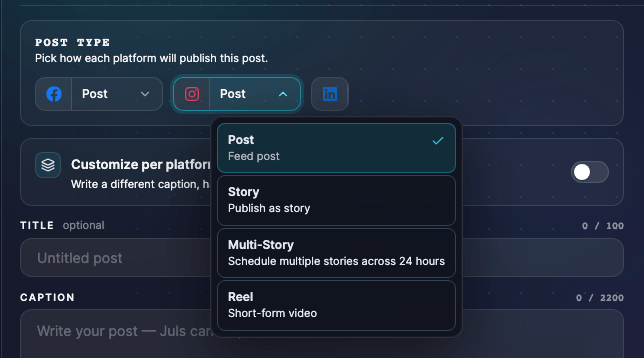
Some networks ask what kind of post this is:
- Instagram — post, reel, story or multi-story.
- Facebook — post, reel, video, story or multi-story.
- TikTok — publish directly, or send to the account's TikTok drafts to finish in the app.
A multi-story schedules several stories across 24 hours. The post type must match the media: a reel needs a video, a story takes a single photo or video.
One caption, adjusted per network
Write the title, caption and hashtags once; every selected network uses them. When one network needs something different — a shorter text for X, say — customise the post for that network only.
A few networks ask for more before publishing:
- TikTok — choose who can see the video, and declare commercial content when it applies.
- Pinterest — choose the board; the title can be up to 100 characters.
Text limits per network are in Platform media requirements.
Write it with Juls
The Ask Juls card drafts a caption from your idea or improves the one you wrote, in the client's voice. Quick actions fit the text to the network's limit, shorten it, add a call to action, rewrite it for TikTok or make it more playful. Each request uses about one credit — more when Juls also reads your images.
Add media
Upload photos or videos, or generate an image or a short video with AI. Julexis checks every file against each selected network's rules as you upload it and shows any problem on the file itself — for some images, with a fix you can apply in one click. Check how the post will look on each network in the preview before you go on.
AI images cost 40 credits (1K) or 50 (2K); AI videos cost 70 (5 s) or 112 (8 s). See AI credits and usage.
Schedule, send for review or save a draft
Pick the date and time, then use the main button. Its menu switches between:
- Schedule (the default) — the post goes out at that date and time. It must be at least 10 minutes away. You can still edit it until then.
- Send to review — for your client's approval; see below.
- Save as draft — keep it for later; see Drafts.
The menu also offers publishing straight away. Scheduling, even a few minutes ahead, leaves you time to catch a mistake.
Dates and times use your device's time zone.
Send a single post for review
Choose the review option, set the date and time, and confirm. Julexis creates a review link and copies it to your clipboard, and the post waits as a draft in your calendar. Send the link to your client; they open it with their review password. See Client review and approval.
Drafts
Save as draft parks your work in progress — a client and some content are enough. Open your saved drafts from Create post to load one and carry on. You can keep up to 25 drafts.
Edit a scheduled post
Open the post in the calendar and choose Edit. Scheduled posts can be edited until their time comes; failed posts can be edited too, to fix the cause before retrying. A post whose time has passed can't be edited or cancelled.
Repost a past post
To publish something again as a new post:
- open a published post in the calendar and choose Repost, or
- open the client's post history and republish it.
Either way you start from a pre-filled copy you can edit. If some of the original media is no longer available, upload a replacement, then schedule it like any other post.