
Connect your social accounts
Each client connects its own social accounts. Once an account is connected, Julexis can publish to it, read its analytics and bring its comments into the inbox.
Before you start
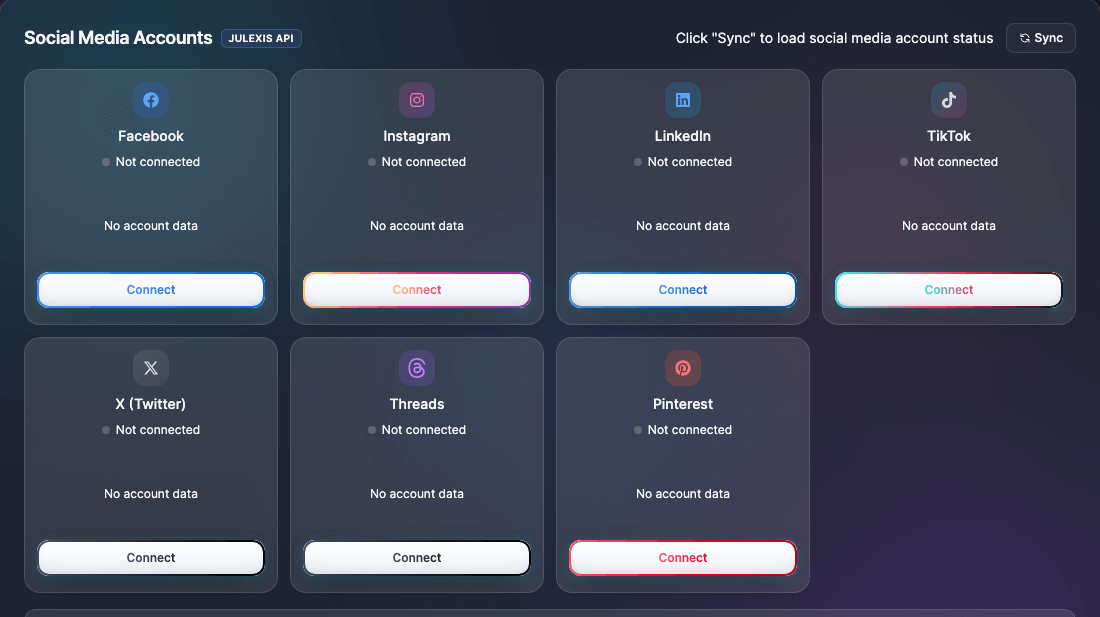
- Where: open Clients, then the client. Its social accounts card has one tile per network. You're also offered it right after adding a new client.
- Who: the workspace owner, or a collaborator the client has been shared with.
- How it works: you sign in on the network's own page, in a pop-up window, and approve access. Julexis never sees your password.
- Allow pop-ups for Julexis in your browser before you start.
Connect an account
- Select Connect on the network's tile.
- Read the short checklist that opens — it has tips for picking the right account — then continue.
- In the pop-up, sign in to the network and approve access.
- The pop-up closes by itself and the tile shows the account as connected.
If the network signs you in as the wrong account, use the log-out option in the checklist first — see Wrong account showing.
You need admin rights on the Facebook Page. The usual setup: your client adds you as an admin of their Page, and you connect with your own Facebook profile.
Watch out
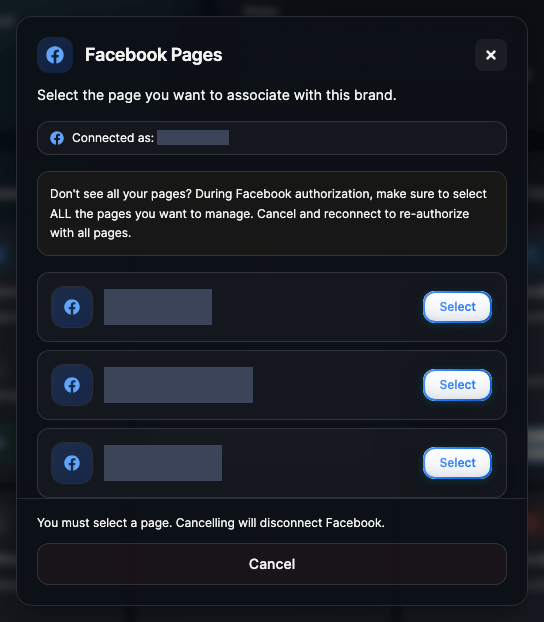
When Facebook asks which Pages Julexis may access, select every Page you manage in Julexis, not just this client's. Selecting a single Page removes access to the Pages you connected before, and publishing and analytics stop for those clients. Keep the full list selected every time you reconnect.
After signing in, choose the Page for this client. You must pick one: closing the Page picker disconnects Facebook. If the Page you expect isn't listed, you're probably missing admin rights on it, or you didn't select it in Facebook's dialog — cancel and connect again.
Instagram needs a Business or Creator account; personal accounts can't be connected. There are two ways in:
- Via Facebook (recommended) — available once Facebook is connected for the same client. Pick the Instagram account linked to one of your Facebook Pages. The connection renews itself and gives the fullest analytics.
- Instagram Login — sign in with Instagram directly, no Facebook Page needed. It must be reconnected every 60 days.
Compare them in Instagram connection methods.
After signing in, choose where to publish: a LinkedIn Page or your personal profile. The Pages listed are the ones your LinkedIn account administers. You must pick one — cancelling disconnects LinkedIn.
Some features need a Page: importing past posts, for example, works only with Company Pages.
TikTok
Both TikTok Business and personal accounts can be connected. TikTok asks you to sign in even if you're already signed in elsewhere, so have the right credentials at hand.
X
Sign in with the X account the client publishes from. If X opens on another account, use the log-out option in the checklist, then continue.
Threads
Sign in with the client's Threads profile. If Threads opens on another profile, use the checklist's option to open Threads and log out (menu at the bottom left, then log out), then continue.
Connecting Pinterest doesn't ask for a board. You choose the board later, for each plan or post you publish to Pinterest — so the account needs at least one board.
Pop-ups blocked
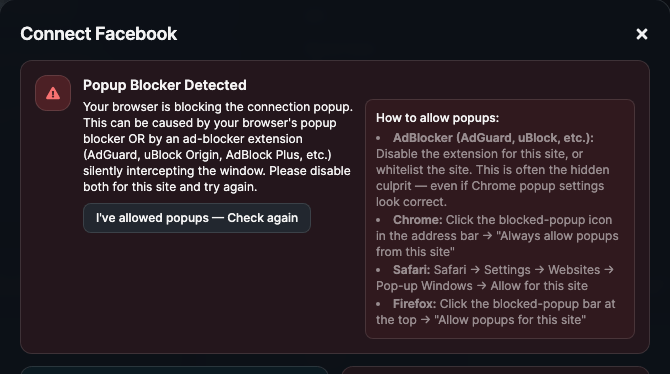
If the browser stops the sign-in window, Julexis shows a panel instead of opening it.
- Chrome: select the blocked pop-up icon in the address bar, then always allow pop-ups from this site.
- Safari: Settings → Websites → Pop-up Windows → allow for this site.
- Firefox: select the bar at the top of the page, then allow pop-ups for this site.
Ad blockers (AdGuard, uBlock Origin, AdBlock Plus and others) can block the window silently, even when the browser allows pop-ups. Turn the extension off for Julexis, then check again from the panel.
If the connection fails
The pop-up tells you what happened, and Julexis shows the same message:
| Message says | What to do |
|---|---|
| The connection was cancelled | Nothing changed. Start again when ready. |
| The platform refused the connection | Try again, signed in with the account that manages this profile. |
| The connection took too long and expired | Start it again from the tile. |
| The sign-in window was open for too long | Julexis stops waiting after five minutes. Try again. |
| Your session needs a refresh | Reload the Julexis page, then try again. |
Reconnect an account
A tile marked as needing reconnection has an expired connection or has lost permissions. Select Reconnect and sign in again — with the same account. For Facebook, select all your Pages again.
If publishing to a Facebook Page fails because your profile no longer has a role on the Page, reconnecting alone won't help: ask the Page owner to restore your admin or editor role first, then reconnect.
To disconnect an account for good, use the tile's disconnect option; tokens and data tied to that connection are removed.