Brand your workspace: logos, company name, white-label email
Your workspace logo is how clients recognise you on the pages and emails Julexis sends them. It's the only logo Julexis puts in front of your clients: theirs never appears on these pages.
Upload your logos
- Open Settings → Logos. (The Personal plan has no Logos tab: there are no client-facing pages to brand.)
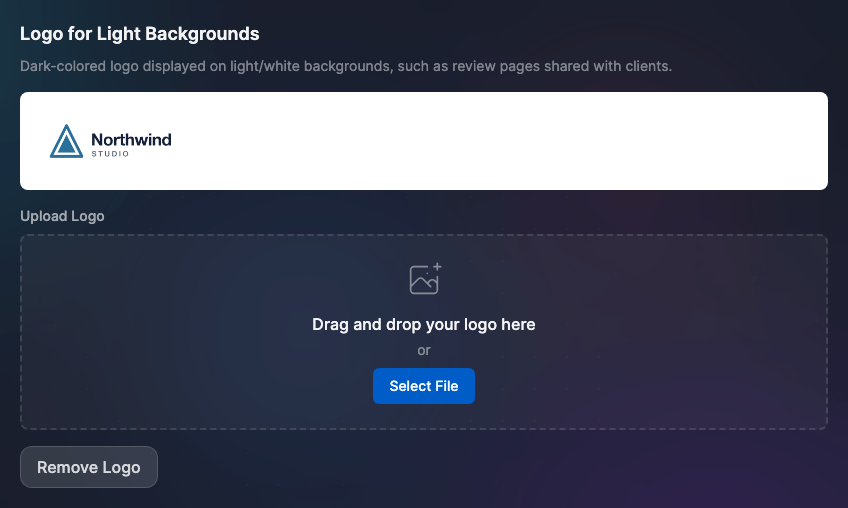
- Upload the logo for light backgrounds first.
- Upload the logo for dark backgrounds if you have one.
Both logos must be PNG files up to 5 MB. The recommended size is about 1200 × 500 px, and a transparent background is essential for the logo to sit cleanly on the page. You can replace or remove either logo at any time.
Dark and light versions
| Version | Looks right on | Used for |
|---|---|---|
| Logo for light backgrounds (a dark-coloured logo) | white and light pages | client review pages, shared analytics reports |
| Logo for dark backgrounds (a light-coloured logo) | dark surfaces | white-label review emails |
If you only upload one version, white-label emails fall back to it.
Your company name
Set it in Settings → Logos, in the Your business card at the top, then save. Clients see it only on the Agency plan: in review emails, and in the footer of review pages and shared analytics reports. On other plans those places show Julexis instead. The name your review emails come from is set separately, under White-label email.
Where your branding appears
| Where | SMM and other plans with a Logos tab | Agency |
|---|---|---|
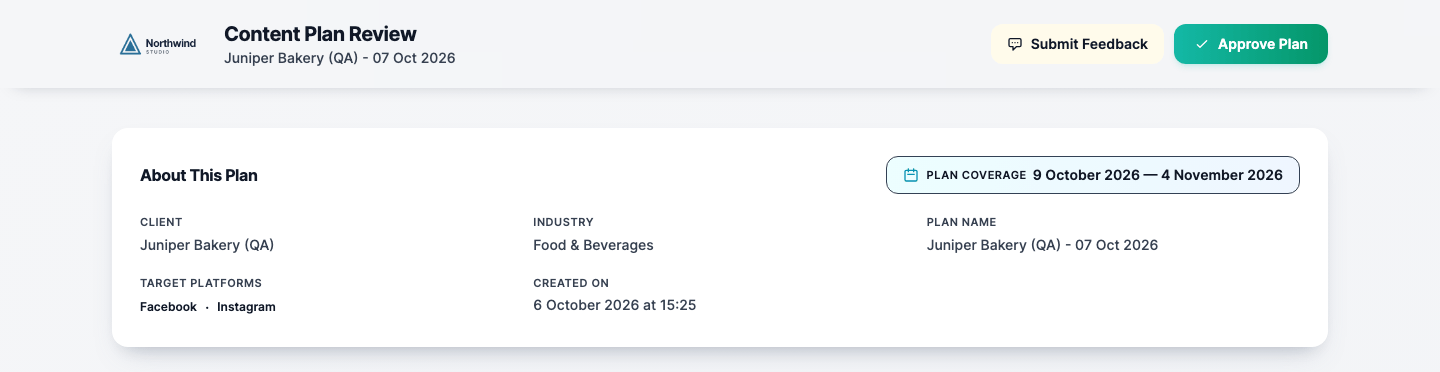
| Client review page | Your logo at the top; "Powered by Julexis" in the footer | Your logo at the top; your company name in the footer |
| Review email | Julexis branding | Your logo and company name; no Julexis branding |
| Shared analytics report | Your logo at the top; "Powered by Julexis" in the footer | Your logo at the top; your company name in the footer |
Your logo appears only once you've uploaded it. On Agency without a logo, review pages and shared reports fall back to the Julexis footer, while review emails stay free of Julexis branding and show your company name where the logo would be.
Contact email in client emails
Review emails show an address your client can write to. By default it's your account email. To use a different one, add an alternative email in Settings → Profile and verify it; once verified, it replaces your account email in client communications. On Agency with white-label email turned on, your sender address is shown instead.
White-label email (Agency)
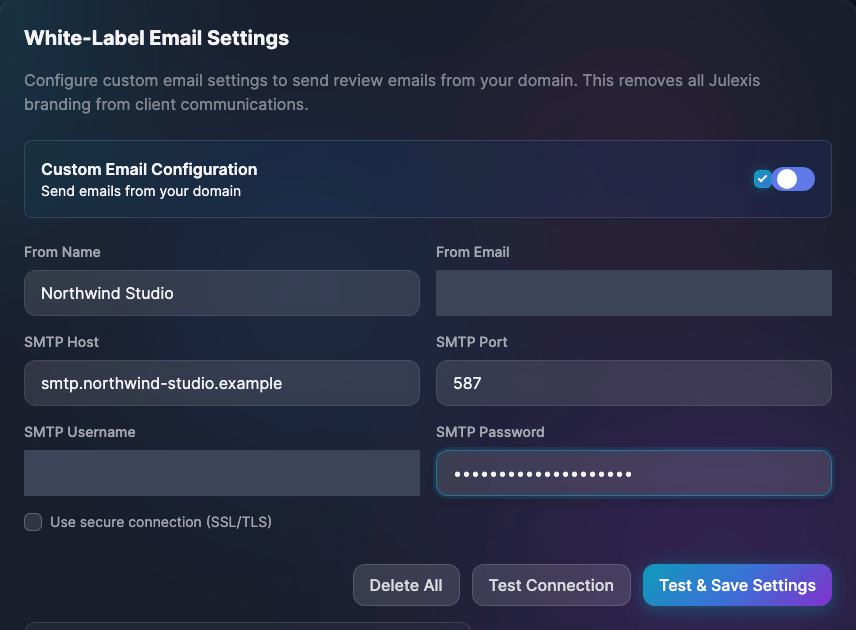
On the Agency plan, review emails can come from your own address instead of Julexis.
- Open Settings → Email and turn on sending from your domain.
- Enter the sender name and address your clients should see.
- Enter your mail provider's SMTP details: host, port, username and password.
- Test and save. If the test fails, nothing is saved — fix the details and try again.
Tips from the settings page:
- Gmail, Outlook and Yahoo use port 587 and need an app password, not your normal password.
- Port 587 (recommended) uses STARTTLS; port 465 uses direct SSL. The secure connection type follows the port.
- For your own domain, ask your hosting provider for its SMTP settings.
Your SMTP password is stored encrypted. If your mail server fails when a review email is sent, Julexis delivers that email through its own service instead, so your client still receives it.
To go back to Julexis branding, delete the email settings from the same tab.